

4. NSIS Script to Package It
4.1 Download HM NIS Edit
By downloading HM NIS Edit, we can create the .nsi file to make a setup file. Visit the official site: https://nsis.sourceforge.io/Download, then download and install NSIS.
4.2 Create your Installer Script (.nsi file)
To make an .nsi file, you have to write the NSIS script for which you need an NSIS script editor like HM NIS Edit or Notepad++.
4.3 Creating a new script in HM NIS Edit:
Follow these steps to create and compile a new script in HM NIS Edit:
- Click on the file button.
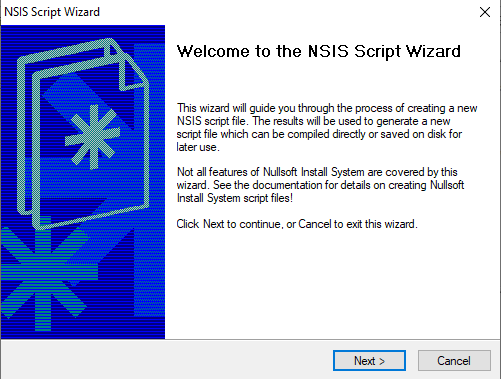
- Click on "New Script Wizard" from the toolbar or File > New Script (wizard).... A pop-up will be displayed on the screen.
- Follow the wizard prompts, providing Application Name, Publisher, Version, installation folder, and main executable.
- Finish the wizard to generate the script.
4.5 Actual Script for the process:
!define PRODUCT_NAME "Textviewer"
!define PRODUCT_VERSION "1.0"
!define PRODUCT_PUBLISHER "Anand Software and Training Limited"
!define PRODUCT_WEB_SITE "http://www.anandsoft.com"
!define PRODUCT_DIR_REGKEY "Software\Microsoft\Windows\CurrentVersion\App Paths\AppMainExe.exe"
!define PRODUCT_UNINST_KEY "Software\Microsoft\Windows\CurrentVersion\Uninstall\${PRODUCT_NAME}"
!define PRODUCT_UNINST_ROOT_KEY "HKLM"

!include "MUI.nsh"
!define MUI_ABORTWARNING
!define MUI_ICON "${NSISDIR}\Contrib\Graphics\Icons\modern-install.ico"
!define MUI_UNICON "${NSISDIR}\Contrib\Graphics\Icons\modern-uninstall.ico"

!insertmacro MUI_PAGE_WELCOME
!insertmacro MUI_PAGE_LICENSE "license.txt"
!insertmacro MUI_PAGE_DIRECTORY
!insertmacro MUI_PAGE_INSTFILES
!define MUI_FINISHPAGE_RUN "$INSTDIR\AppMainExe.exe"
!insertmacro MUI_PAGE_FINISH

!insertmacro MUI_UNPAGE_INSTFILES
!insertmacro MUI_LANGUAGE "English"

Name "${PRODUCT_NAME} ${PRODUCT_VERSION}"
OutFile "TextviewerSetup.exe"
InstallDir "$PROGRAMFILES\Textviewer"
ShowInstDetails show
ShowUnInstDetails show

Section "MainSection" SEC01
  SetOutPath "$INSTDIR"
  SetOverwrite ifnewer
  File "\bin\Release\net7.0-windows\publish\DragDropView.exe"
  File "bin\Release\net7.0-windows\publish\DragDropView.dll"
  File "bin\Release\net7.0-windows\publish\DragDropView.pdb"
  CreateDirectory "$SMPROGRAMS\Textviewer"
  CreateShortCut "$SMPROGRAMS\Textviewer\Textviewer.lnk" "$INSTDIR\AppMainExe.exe"
  CreateShortCut "$DESKTOP\Textviewer.lnk" "$INSTDIR\AppMainExe.exe"
SectionEnd

Section "-AdditionalIcons"
  WriteIniStr "$INSTDIR\${PRODUCT_NAME}.url" "InternetShortcut" "URL" "${PRODUCT_WEB_SITE}"
  CreateShortCut "$SMPROGRAMS\Textviewer\Website.lnk" "$INSTDIR\${PRODUCT_NAME}.url"
  CreateShortCut "$SMPROGRAMS\Textviewer\Uninstall.lnk" "$INSTDIR\uninst.exe"
SectionEnd

Section "-Post"
  WriteUninstaller "$INSTDIR\uninst.exe"
  WriteRegStr HKLM "${PRODUCT_DIR_REGKEY}" "" "$INSTDIR\AppMainExe.exe"
  WriteRegStr ${PRODUCT_UNINST_ROOT_KEY} "${PRODUCT_UNINST_KEY}" "DisplayName" "$(^Name)"
  WriteRegStr ${PRODUCT_UNINST_ROOT_KEY} "${PRODUCT_UNINST_KEY}" "UninstallString" "$INSTDIR\uninst.exe"
SectionEnd

Function un.onUninstSuccess
  MessageBox MB_ICONINFORMATION|MB_OK "$(^Name) was successfully removed from your computer."
FunctionEnd

Function un.onInit
  MessageBox MB_ICONQUESTION|MB_YESNO|MB_DEFBUTTON2 "Are you sure you want to completely remove $(^Name) and all of its components?" IDYES +2
  Abort
FunctionEnd

Section Uninstall
  Delete "$INSTDIR\uninst.exe"
  Delete "$INSTDIR\AppMainExe.exe"
  Delete "$SMPROGRAMS\Textviewer\Uninstall.lnk"
  Delete "$DESKTOP\Textviewer.lnk"
  RMDir "$SMPROGRAMS\Textviewer"
  RMDir "$INSTDIR"
  DeleteRegKey ${PRODUCT_UNINST_ROOT_KEY} "${PRODUCT_UNINST_KEY}"
  DeleteRegKey HKLM "${PRODUCT_DIR_REGKEY}"
SectionEnd
4.6 Compile the script:
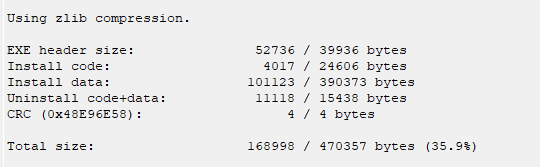
Click Compile NSIS Script (F9 or the green triangle icon). If successful, your setup.exe will be generated in the same folder.